Cleaning up stale Entra ID app registrations

This time I’ll share another short, “vibing” script, which helped me make some room for new app registrations inside my Entra ID. 🙂

Script is rather simple – it collects information about apps that are registered in the tenant, status of their credentials and reports back in a clean, HTML… well, report. In case I’m satisfied with the reported state, I can run it with -Force and it will also delete all the stale app registrations it reported. Easy, efficient, cool. 😎

Report looks like this:

Execution like this:

And, as always, script is there in my GitHub.

Cheers!

Exporting the Managed Favorites from Edge

It’s time for another short “vibe story”.
Although, “vibe coding” part was not that short… oh, well. 😅

So, there is a feature in Microsoft Edge called Managed Favorites – basically, it’s a policy which adds some predefined (let’s say, work-related) favorites into your Edge browser. Which is pretty cool, if you’re using Microsoft Edge. If not, you would maybe also want to have the same favorites added to your other browser(s). With all other favorites, Export/Import would do the trick. But not with these – if you tried exporting them, you could have seen that they are not getting exported with all other favorites. 🤷‍♂️

What can be done then?

You could go to your admin and nicely ask him to provide you these favorites so that you can create/import them by yourself.

Or, you could go to your registry and read the list (it’s actually JSON… but saved as a single string) from HKEY_LOCAL_MACHINE\SOFTWARE\Policies\Microsoft\Edge\ManagedFavorites and create these favorites/bookmarks in your other browser(s):

Or, and this is the option I was vibe coding with my AI companion, you can get the Export-ManagedFavorites.ps1 script and run it to export them (as HTML) for you! 🙂
With managed favorites exported by the script, the toughest part is done, and you can easily import them into your favorite (pun intended) browser(s):

Maybe there are other options (probably there are), but I wanted to have this little PowerShell script for when I need it.

For more info and the script itself, go and check out my GitHub.

Cheers!

P.S. If you think I forgot about the “not that short vibe coding part” – my AI companion didn’t seem to understand my desire to have the final HTML formatted in a certain way… so, it took some time (and a few trips down the rabbit hole) to persuade it have it done the right way. 😅😀

Git vibes?

Another day, another project nobody really needs… but here it is! 😁

As I was reorganizing some stuff, mostly on multiple Git repositories (both, internal and GitHub), I noticed that sometimes I forget to save my work. So, to remember (and potentially stop this from happening), came up with a small and simple PowerShell script… helping me to remember. Of course, it was vibe-coded with the ChatGPT’s help.

The idea behind it – I have a local folder with multiple projects/repositories on which I’m working. As I mostly switch from one thing to another (or a computer to computer, or …), I sometimes do something and forget to save it on the remote Git instance. And as things with computers tend to happen… 🙂

Smart people of the Internet say (borrowed from https://mastodon.social/@nixCraft/111489234007874526):

So, to potentially stop forgetting (and losing my work), a simple PowerShell script (Check-GitRepos.ps1) goes into the local “projects” folder, gets the latest updates, asks and commits the local changes (if there are some). For now, it doesn’t create additional branches, commits to them, etc. – it may be a feature of the next version.

Current version is just fine for my personal “use case” – smart, simple and quick.

Examples of running it on a local folder:

So, not much else to add – it does what it’s supposed to do. And, as always, it’s available on my GitHub.

Cheers!

P.S. Yeah, I also thought about the question that presents itself – and who will remind me to run the script?! Oh, well… 🤷‍♂️😅

P.P.S. There is also git-fire, which may help with the emergencies.

Vibe adding the Cloudflare records

One of the summer night “lab sessions” produced this one – I was testing something and was in need to add a couple of new DNS records in my Cloudflare account. Of course, “the normal way” would be to login to the beautiful web-page doing just that, but I wanted to do it differently. Of course – with PowerShell. And of course – with the help of my vibe coding AI companion, ChatGPT. 🙂

So, the idea was born – let’s vibe produce the PowerShell script which will  check and add some (A, CNAME and TXT) records to my Cloudflare-hosted domain, backup the state before and after for… purposes, and report to me what was done in a nice, readable way.

The same thing I could have done via the web-page even faster, but… 🤷‍♂️

The result is script called Add-CfDNSRecord.ps1, which is available on my GitHub, and does just that! 🙂

And for the script to work, you will need the API token, which you can create as following:

  1. Login to your account at https://dash.cloudflare.com/
  2. Go to Profile (top right “user” menu)
  3. Go to API Tokens (left menu)
  4. Create Token
  5. You can use the Edit zone DNS template
  6. Configure settings of your token (constrained as possible in terms of zone, duration, etc.)
  7. Use this token with the script

This can be improved, but it does the job (for me).

Use at your own risk (like with everything you find online)!

Cheers!

Organize pictures and videos… the “vibe” way

The idea for this one came to mind one summer evening, when I was searching for something on my disks, and realized – it’s a mess.

So, started figuring out this mess by first organizing images and videos backed up from my phone(s) into folders. Phone backups are a nice thing… and usually it’s all in a single folder.

OK, there are options… but it is what it is – now I have a folder called like “Mobile-Backup-XXX”, with all files in it… no subfolders. 🤷‍♂️

Of course, when I opened this folder with thousands of files, and started moving them manually to respective subfolders, it soon became clear that I need help (OK, maybe that was obvious from the start 😁).

A whom do you call for help these days? Ghostbusters? 🤔

Well, no – the answer is always “AI”. More precisely, I called (free) ChatGPT.

Long story short, it helped me to write a nice PowerShell script which will take my folder with thousands of files and slightly organize it by moving those files into (sub)folders named by the date they were taken or created.

After some time, we got the script working, some logging was added, and it was ready for testing – tested it on a few folders, and then realized that sometimes it has issues with reading the “right” metadata, so we reengineered that part.

Some time later, after some other tiny things were polished, script was ready and doing it’s work just as I expected it! Nice!

Now, instead of a folder with thousands of images and videos, I have a folder with hundreds of subfolders… 😅

And if you put stuff into folders, you don’t have to look at it, and it doesn’t bother you anymore, right?! 😁

But OK – it’s a first step in organizing stuff! 😊

Could it be improved?! Of course! But… 🤷‍♂️

The script (Organize-PicsAndVids.ps1) is, as always, available on my GitHub.

Cheers!

P.S. This was also somewhat inspired by an episode from “Scott and Mark Learn To…” series of podcasts by Scott Hanselman and Mark Russinovich – make sure you subscribe and watch them regularly! They rock! 😊

Vibe coding while waiting on my packages

Recently, I was waiting on some packages to arrive via DHL Germany. As I also had some spare time, and it was raining outside, I was playing around with PowerShell and DHL’s API to see if I can get status of my packages in a nice (to me), formatted way.

TL;DR: I can. 🙂

The idea was to build a small script which will take in a list of tracking numbers from my incoming packages, check their latest statuses and any history it can find, and display it in a nice, formatted way.

So, it all started with exploring the API possibilities on DHL’s Developer website.

To be able to use their APIs, you must register (for a free account):

Next, you have to request API access, so that you get your API key and secret – you do this by creating an app and selecting APIs it will use (selected Shipment Tracking – Unified, as it sounded right):

Then you wait a bit for someone/something to approve your request (few minutes), and you are ready to go:

Now you have all the building blocks, and it’s time to code… finally. 🙂

I won’t explain the code line by line (it’s not that interesting and it could be written nicer), but will just say that I used the help of (the free) ChatGPT (or rather – it used my ideas?! Who knows… 😁), and “vibe-coded” the whole thing. There were errors, misunderstandings, etc., but we managed to get to something that does the job:

Just one thing – as I was looking at the outputs, I’ve seen these “detailed info” codes, and decided to explore what they mean – for this, I found a CSV file with the explanations, which I then decided to incorporate into my script… just for fun.

The script (Track-DHLShipment.ps1) is available on my GitHub.

What’s next? Don’t know… probably my packages will indeed arrive. 🙂

Cheers!

P.S. This was somewhat inspired by an episode from “Scott and Mark Learn To…” series of podcasts by Scott Hanselman and Mark Russinovich – make sure you subscribe and watch them regularly! They rock! 😊

Create a self-signed certificate for your web server with PowerShell

Sometimes you may need SSL certificate just for testing your (local) web application. Of course, for public and trusted purposes, you’ll probably use free Let’s Encrypt certificate or something similar (or, of course, any of the paid options).

And this is OK as long as you have publicly resolvable domain name.

But what if you need certificate for, let’s say, “localhost” or “webserver.local”?

Then you’ll probably use your internal PKI infrastructure or a simple self-signed certificate.

Second one can be easily achieved with PowerShell, by using the New-SelfSignedCertificate cmdlet (or with OpenSSL, yes 🙂).

So, let me show you how.

We have a simple IIS setup hosting a single (default) website, responding to http://localhost/:

We’ll issue a new self-signed certificate, make it trusted (important!) and then attach it to our test website, with following:

If everything goes well, we will see another binding created in our IIS console:

And if we open https://localhost/, all should be good as well:

Cheers!

Add a route to your VPN connection via PowerShell

I’m sure that you’re using some VPN somewhere, and you’re having “trouble” with split tunneling and routing, right?

Well, I had. 😀

As I’m “here and there” most of the time, I’ve setup an “anchor” location (no, it’s not in the cloud… yet) which is always available via VPN, and which has few machines that I’m, more or less, using regularly. When I’m not there, I connect there via my precious Windows 10/11 laptop and work as I’m there locally. I know – you know what VPNs are used for… bear with me a bit longer. 😀

So, all good – I have a VPN client (Windows built-in), a VPN server and Internet connection, and I can work.

One thing that I like to have is Internet access which is not routed via my “anchor” location, so that “the work stuff” goes through VPN and “the fun stuff” not.

It’s really easy to set this up – in properties of your VPN connection, just untick the “Use default gateway on remote network” checkbox:

But then you’ll have an issue with connecting to “the work stuff” – your current default gateway doesn’t know where “the work stuff” network is and how to get there.

It needs a route.

No problem, it’s easy to add a route in Windows (my “the work stuff” network is 192.168.13.0/24 and my VPN gateway is 192.168.14.1, or publicly 141.138.55.154):

And now you have access to “the work stuff” network again! And Internet access works as it should (not via the “anchor” location)!

Great.

But then you disconnect. And reconnect. And route you’ve added is gone. So, you repeat the procedure. Or script it. Or…

What if I tell you there is actually a better way?

I’m not really sure in which release this came out, but now you have an updated set of PowerShell cmdlets in (Windows 10/11) (which is cool!). For this story, the one we’re interested the most is Add-VpnConnectionRoute.

“So, doest that mean that, with it, I can configure my VPN connection to always have the route I need, whenever I connect to VPN? No more adding routes manually?!”

Exactly.

If I use the discussed Add-VpnConnectionRoute on my existing VPN connection, I can add the route I need and it will be written in the connection configuration and made active when the tunnel comes up, while still using the split tunneling.

Let’s see:

  • connected to “the work stuff” VPN and this is (part of) routing table prior the route configuration:

  • adding route configuration:

  • checking routes again:

As you can see, I’ve got new routes in my route table (it would be the same by using route add command above) and now I can access “the work stuff” without any issue:

And if I disconnect and connect again – it still works! 😊

Hope it helps someone!

Cheers!

Checking certificate expiration with PowerShell

Had an idea to write some (PowerShell) script which will check and maybe notify me of certificates that are nearing expiration for a bunch of (public) sites that… somewhat matter to me. 😊

As it turns out, someone already had this idea and wrote very nice PowerShell script that does just that, available here – thank you!

While testing it, there were sites on which the script worked just fine, and there were sites on which I got errors like this one (Error: “String was not recognized as a valid DateTime.”):

Seems to be connected to my regional settings (I know… who would ever use hr-HR instead of en-US, but… 😊) and date/time formatting:

I’ve tried to fix it in a couple of ways, but the one that finally did it (for me) was explained on Dan Sheehan’s blog (thanks!), implemented on lines 25-26 below.

So, my adapted script looks like this (and works with my hr-HR culture):

It provides the following output (which can be further customized per your needs, of course… and I know – need to insert some line breaks, convert output to HTML, send it via e-mail, … it’s a start! 😊):

Note that I’m returning expiration date “the Croatian way”, by using the following formatting:

Hope it helps someone (and #kudos to original authors)!

Cheers!

Beware of the proxy!

Had a (somewhat) interesting case the other day – after (finally) upgrading my Windows Admin Center (WAC) gateway machine to the new Windows Server 2022, my WAC suddenly stopped working. I couldn’t connect to any of the servers from within the console, couldn’t add new ones, … nothing.

When tried adding new servers, nothing happened – wizard stays at “Searching for…“:

Even PowerShell couldn’t connect anymore (which is actually the root cause of the above).

So, what happened?

Everything worked before and I wasn’t aware of other changes… other than upgrading my OS (in-place upgrade, Windows Server 2019 to Windows Server 2022), that is.

Let’s try and make sense of all this.

Test-NetConnection says everything is fine, Test-WSMan from another machine works:

However, Test-WSMan from this (WAC) machine simply doesn’t work:

Tried checking the logs next – two errors inside Applications and Services Logs -> Microsoft -> Windows Remote Management -> Operational log caught my eye:

  • Error 138: The client got a timeout from the network layer (ERROR_WINHTTP_TIMEOUT)
  • Error 142: WSMan operation Identify failed, error code 2150859046

So, it’s something with the network after all – more specifically, seems like there is some issue on the HTTP/S part!

After some thinking, I remembered that we have a HTTP/S proxy in our network – maybe my PowerShell session actually tries to go through it?! 😀

Checking if proxy is set (with netsh winhttp show proxy) – it is! This could be the issue.

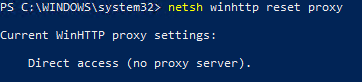
Now I’m resetting the proxy settings (with netsh winhttp reset proxy, of course):

And then trying Test-WSMan again:

It finally works! And WAC works as well! 😀

Hope this helps!

Cheers!